Applications
Find applications, understand each status, and move an applicant from draft to enrolled student.
An application is everything XPortal needs to know about a person before they become a student: who they are, the reporting details the government requires, what they want to study, when and where, and how they will pay. You build it in the New Application wizard, submit it, make an offer, and approve it. Approval turns the application into a real student with a real enrolment.
The Applications page
Open Applications in the sidebar. The page shows every application, with shortcuts to focus on one status at a time, plus the usual filters, column choices and export.
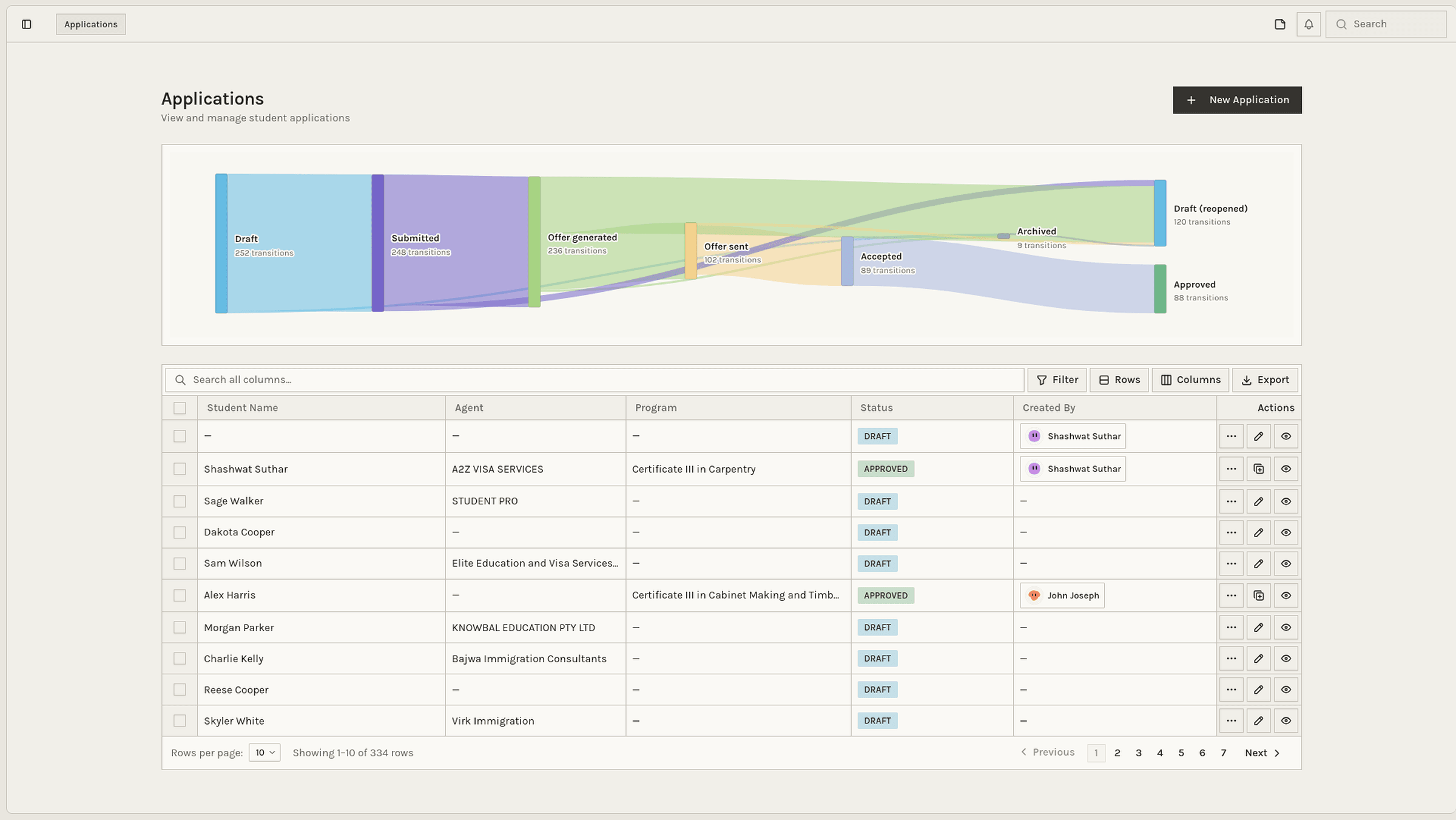
To start a brand-new application, select the New Application button at the top of the page. The New Application wizard explains everything from there.
Search before you create
Search the Applications and Students pages for the person first. A duplicate person or application makes reporting, invoicing and communication unreliable. If the person is already a student and wants another program, add it from their student profile instead. See Linked student applications.
Application statuses
Every application moves through the same stages. The status tells you where it is up to:
| Status | What it means |
|---|---|
| Draft | Still being filled in. Only drafts can be edited. |
| Submitted | Complete and handed over for review. The application is now read-only. |
| Offer Generated | An offer letter has been created. |
| Offer Sent | The offer letter has been sent to the applicant. |
| Accepted | The applicant has accepted the offer. |
| Approved | Approved. XPortal has created the student and their enrolment. |
| Rejected | The application will not proceed. |
| Archived | Kept for the record, but moved out of active work. |
What you can do at each stage
Each row in the list shows the actions that make sense for its status:
| Status | Actions on the row |
|---|---|
| Draft | Edit to keep working on it, or Archive it. |
| Submitted | Generate Offer creates the offer letter. |
| Offer Generated | Send Offer to the applicant. You can also download or regenerate the offer letter, Manage Deposits, or archive. |
| Offer Sent | Accept or Reject once the applicant replies. You can still download or regenerate the letter and Manage Deposits. |
| Accepted | Approve to enrol the student. You'll be asked for an orientation date, with the student's first unit start date shown for reference, and can send the orientation email at the same time. |
| Approved or Rejected | No further status changes. |
| Archived | Unarchive to bring it back. |
Clone as draft is available on every application. It copies the application, including the applicant's files where possible, into a brand-new draft and opens it. Use it when a submitted application needs changes, because submitted applications can't be edited.
Do not use status as a reminder
Set the status to the applicant's actual stage. Use notes and your team's follow-up process for reminders, so admissions reporting stays accurate.
What approval creates
When you approve an application, XPortal:
- creates the student record, or adds the program to the existing student for a linked application;
- creates an enrolment for each program, with the study plan from the application. See Rolling intakes;
- moves the payment schedule, and any deposit invoices with payments already made, across to the enrolment for each program. See Payment;
- places the student in Students → Pending Orientations, ready to be oriented.
Linked student applications
If a person is already a student and wants to study another program, start the application from their student profile: on the course tab, select the + Program button at the top. XPortal creates a draft application already linked to the student and opens it. The wizard shows a banner:
Linked student: name (student ID). Approval will add a new program to this student record.
Everything else works the same. On approval, XPortal adds the new program to the existing student instead of creating a second student.