Students
Use every page in the Students section to find records, manage follow-up work, communicate, and export data safely.
The Students section is where you find and act on student records. It has two kinds of pages:
- All Students is the complete student index. Use it when you need to search, review, update, or export student records.
- The four queue pages are focused views for work that needs attention. Use them when you are following up on a specific stage of the student journey.
Start with the page that matches the task
If you are looking for one person, start with All Students. If you are working through a daily follow-up list, open the queue that matches the action you need to complete.
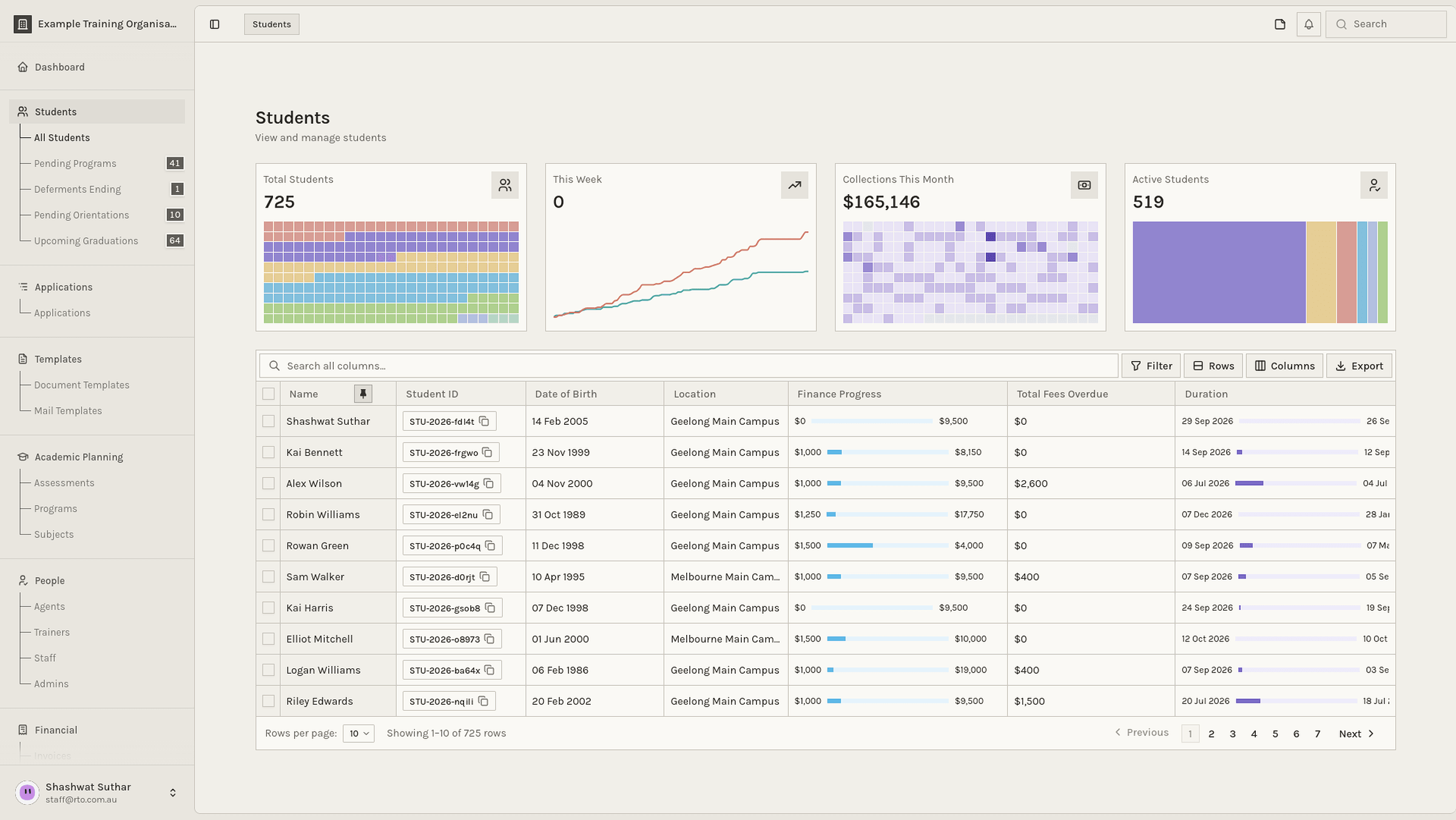
Read the Students sidebar
The sidebar tells you both where to work and how much work is waiting:
| Sidebar page | What it is for | Start here when |
|---|---|---|
| All Students | The full student list | You need to find a person or work across a broad set of records |
| Pending Programs | Students with program-related work still to complete | A student needs a program selected, confirmed, or corrected |
| Deferments Ending | Students whose deferment is approaching its end | You need to review the next step before a deferment ends |
| Pending Orientations | Students whose orientation action is not complete | You need to arrange, record, or follow up an orientation |
| Upcoming Graduations | Students approaching completion or graduation | You need to prepare completion checks or graduation activities |
The number badge is a live work count. It is a prompt to review the queue, not proof that every row is ready for the same action. Open the page, confirm the filters and dates, then work through the records.
All Students
Use this page to
- Find a student by name, student ID, email address, or another available field.
- Review the student record before creating or changing information.
- Compare students using filters, columns, and the appropriate row type.
- Select records for a supported bulk action, such as email.
- Export the smallest useful set of records for an approved purpose.
A safe search routine
- Open Students → All Students.
- Search using the most reliable identifier you have, such as the student ID or full name.
- Add filters to narrow the result if more than one person matches.
- Open the matching row and check the student ID, full name, date of birth, and contact details.
- Only then create, update, select, or export the record.
If you cannot find the student, broaden one filter at a time. Do not immediately create a new record: the person may be stored under a different spelling, status, enrolment, or organisation scope.
Shape the list for the question you are answering
Most list pages let you adjust the view. See Filter for the complete filtering model. Before you act, check:
| Check | Why it matters |
|---|---|
| Row type | A student list and an enrolment list answer different questions. Choose the grain that matches the task. |
| Filters | Filters decide which records are in the working set. |
| Columns | Visible columns help you compare the right facts without opening every row. |
| Selected rows | A selection can change the scope of a bulk action or export. |
| Date range | Time-based work, especially queues, can change when the date range changes. |
Review scope before a bulk action or export
Read the active filters and the selected-row count immediately before you confirm. If the scope is not what you intended, clear the selection or adjust the filters first.
Contact or export students
Select only the students who should receive the action. For email actions, XPortal excludes records without a usable email address, but you should still review the recipient list before sending.
When exporting, follow the complete Export guide. At a minimum:
- Confirm the organisation or workspace you are working in.
- Keep only the columns required for the approved task.
- Check whether the export uses selected rows, filtered rows, or the full visible list.
- Store or share the file according to your organisation's privacy requirements.
Pending Programs
What this page means
Pending Programs is a follow-up queue for students whose program-related information still needs attention. The exact reason can vary: a program may be missing, awaiting confirmation, or require a correction.
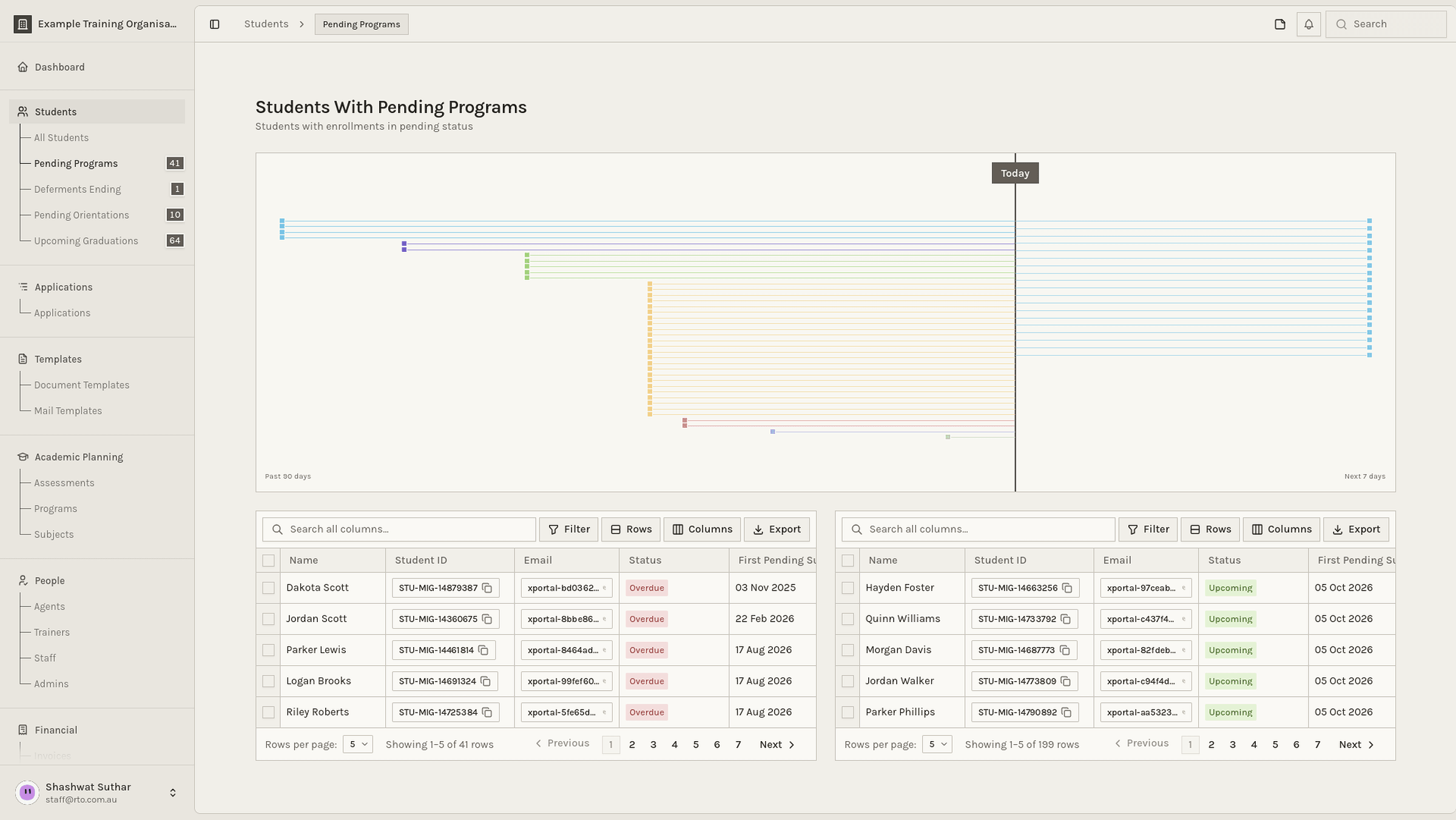
How to work the queue
- Open Students → Pending Programs.
- Read the queue's filters and date context before opening a row.
- Open the oldest or most urgent record according to your organisation's process.
- Check the student's identity and current enrolment before changing program information.
- Complete the program action, add a clear note when the workflow provides one, and return to the queue.
- Confirm that the record no longer belongs in the queue, or leave it for the correct owner with an explanation.
Do not treat the badge as a target to clear as quickly as possible. The goal is accurate program information and a clear next step for every student.
Deferments Ending
What this page means
Deferments Ending helps you find students whose deferment is approaching its end. It supports timely review so the next step is not missed.
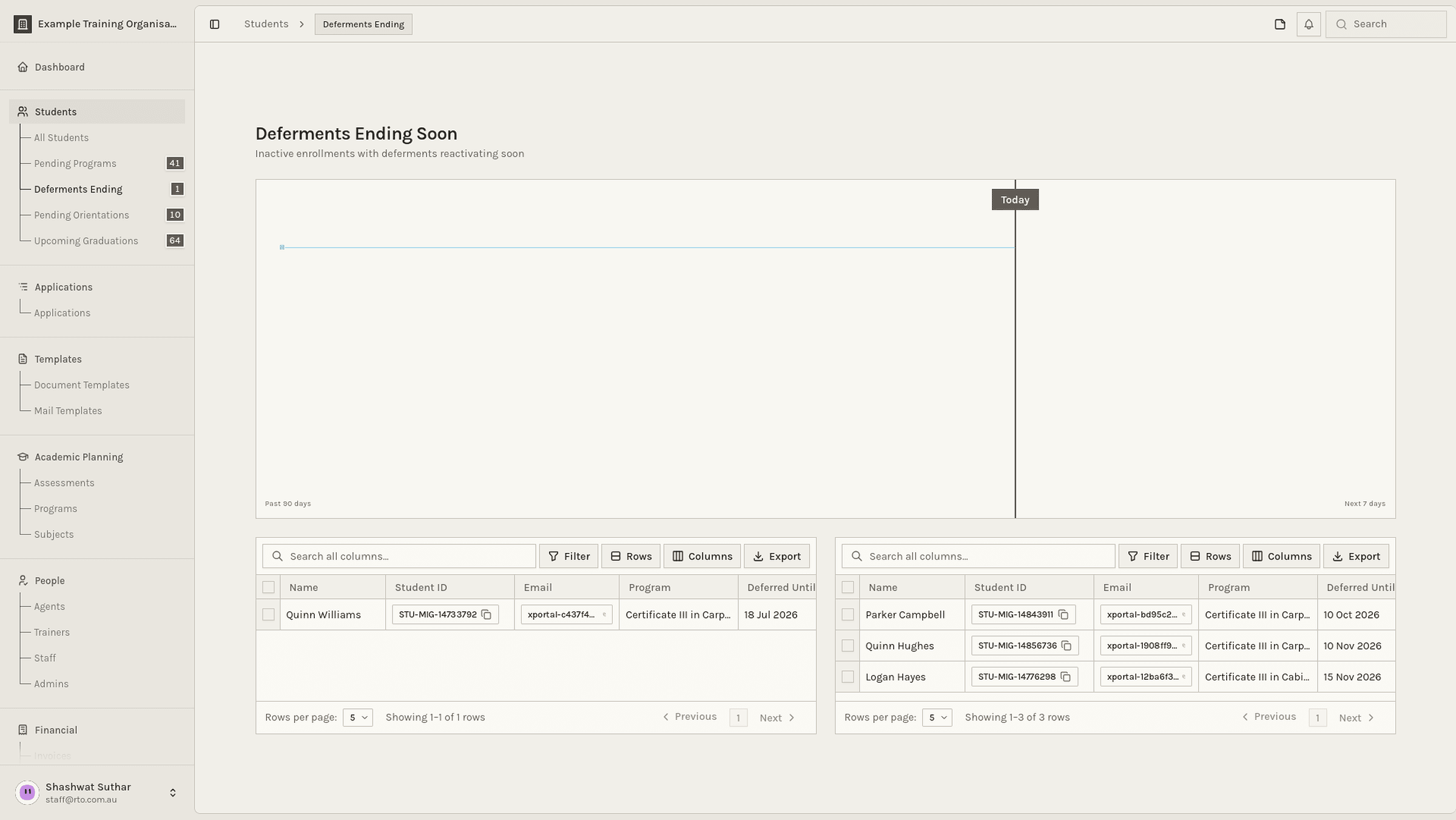
How to work the queue
- Open Students → Deferments Ending.
- Confirm the deferment end date and the relevant student enrolment.
- Review what should happen next: return to study, extend the deferment, update the enrolment, or escalate for a decision.
- Contact the student or internal owner using the approved process.
- Record the outcome and any agreed date in the appropriate record or workflow.
If a student has more than one enrolment, confirm which enrolment the deferment belongs to before acting. A student's overall status and an individual enrolment's status are not interchangeable.
Pending Orientations
What this page means
Pending Orientations identifies students whose orientation action still needs to be arranged, completed, or recorded.
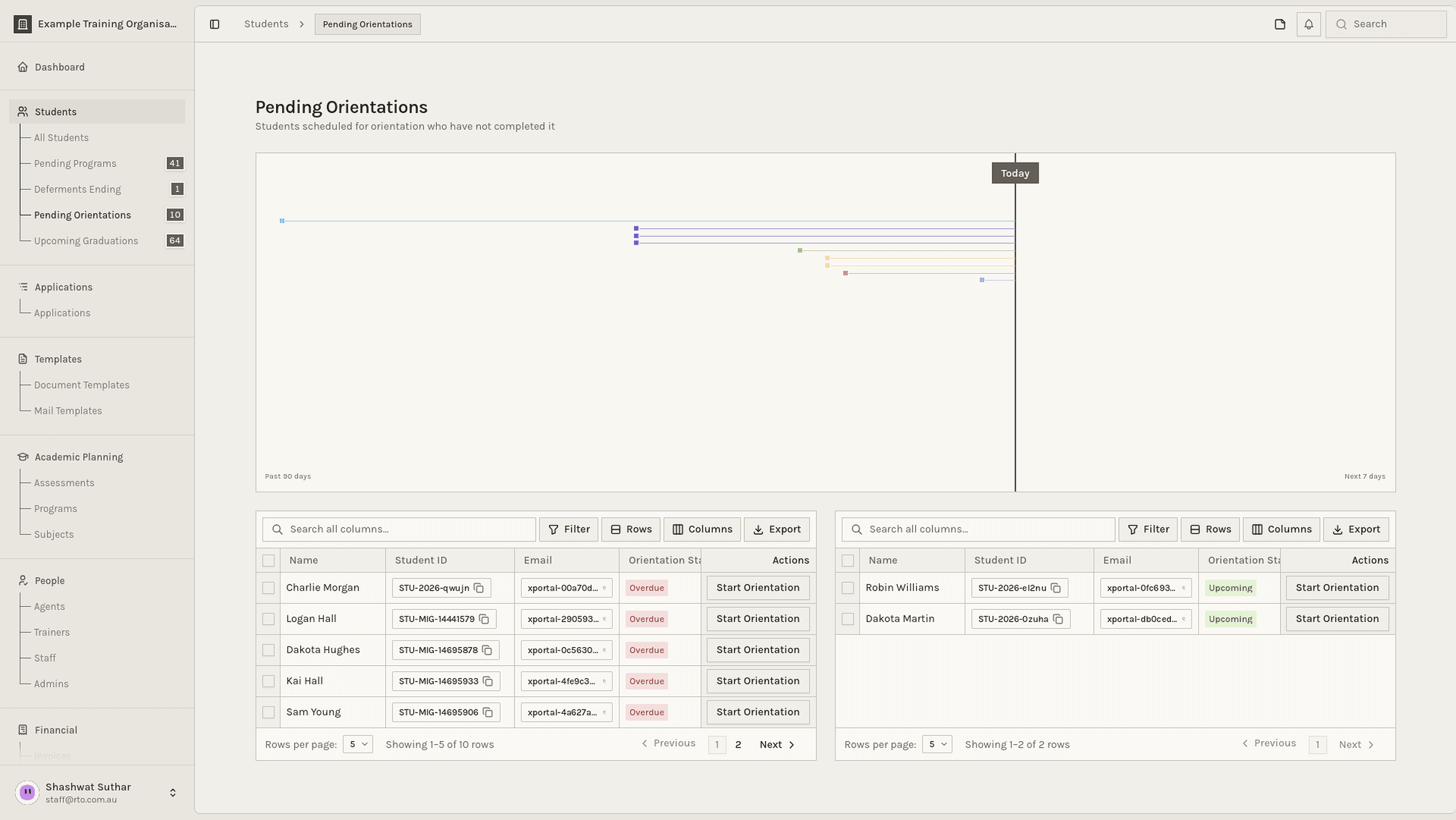
How to work the queue
- Open Students → Pending Orientations.
- Check the student's start date, program, location, and orientation requirements.
- Arrange or confirm the orientation using your organisation's normal process.
- Record attendance, completion, or the reason for a delay where the workflow allows it.
- Reopen the record if needed and confirm that the orientation state now reflects reality.
Keep the orientation record factual. If the student did not attend, do not mark the orientation complete simply to remove the queue item.
Upcoming Graduations
What this page means
Upcoming Graduations is a preparation queue for students approaching completion or graduation. It helps teams identify records that need final checks and coordination.
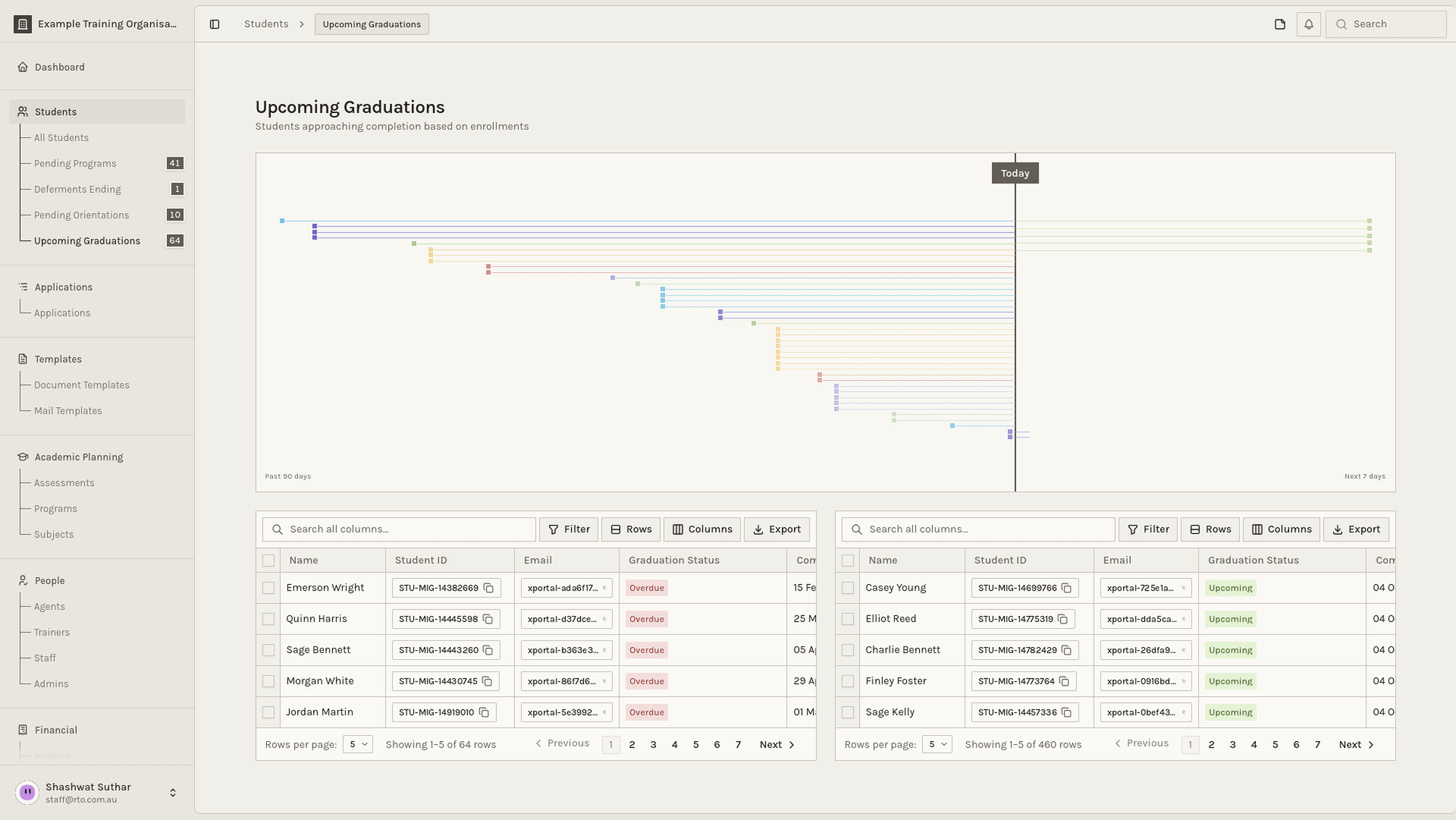
How to work the queue
- Open Students → Upcoming Graduations.
- Check the expected completion or graduation date and the relevant program or enrolment.
- Review the completion information required by your organisation.
- Resolve missing or inconsistent information before the graduation activity.
- Record the outcome and update the next step so another team member can understand the record without repeating the investigation.
Work from the dates and evidence in the record. A queue entry is a prompt to review, not an automatic confirmation that a student is ready to graduate.
A reliable Students workflow
Use this loop for every page in the section:
- Open the right view. Choose All Students for discovery, or the queue that matches the follow-up work.
- Confirm the scope. Check organisation, filters, dates, row type, and selection.
- Confirm the person. Use reliable identifiers before changing a record.
- Complete the real-world action. Follow the approved process for the student and enrolment involved.
- Leave a useful record. Save the outcome, note, date, or owner when the workflow provides a place for it.
- Check the queue again. Make sure the status now matches what actually happened.
Quick decision guide
| If you need to… | Open… |
|---|---|
| Find one student | All Students |
| Review or update a student's program | All Students or Pending Programs |
| Follow up a deferment deadline | Deferments Ending |
| Arrange or record orientation | Pending Orientations |
| Prepare for completion or graduation | Upcoming Graduations |
| Send a message to a known group of students | All Students, then filter and review the selection |
| Produce a limited, approved data file | All Students, then confirm filters, columns, and export scope |